Visitor Team: Reception Emails and Kiosk Alerts
Last updated: November 10, 2026
The visitor team is one list of everyone who handles visitors in your organization – colleagues or plain email addresses, e.g. a shared reception mailbox. For each person you choose what they get and for which locations or offices. This article shows admins how to set it up.
In the PULT dashboard, go to Settings → Visitors → Notifications and scroll down to Visitor team. All changes on this page are saved automatically.
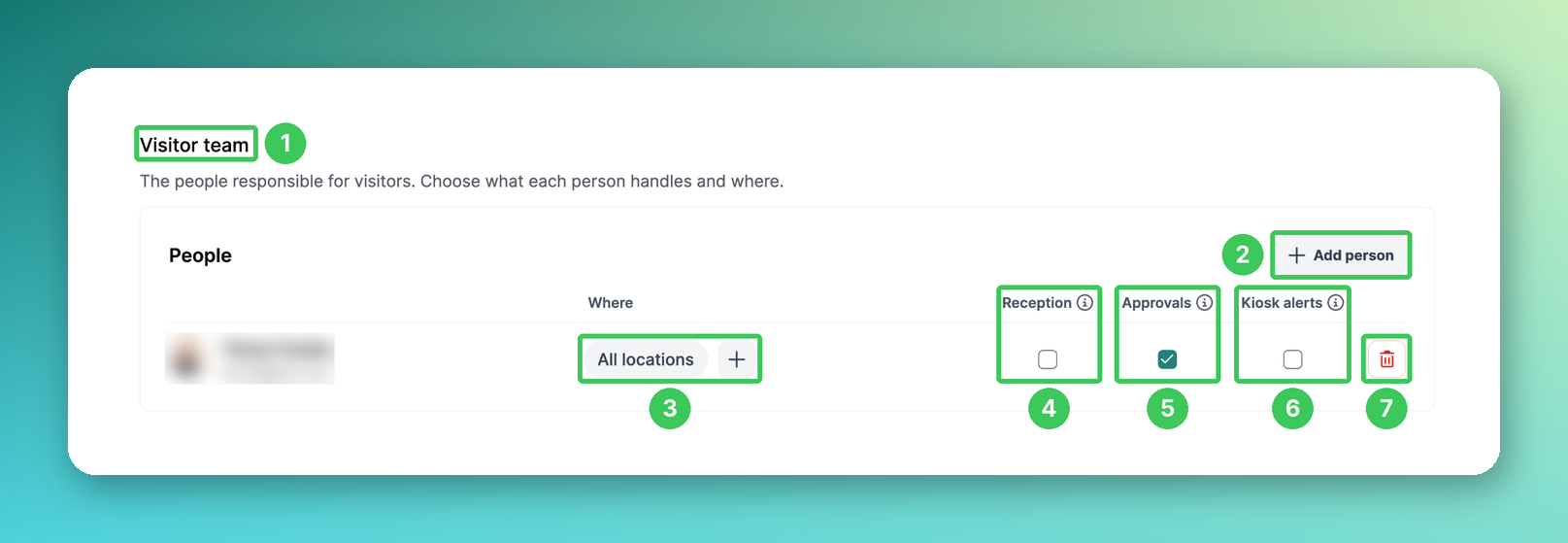
1. Visitor team
The section lists everyone on your visitor team. The visitor team used to be a separate page – it is now part of the notifications page.
2. Add person
Click Add person and search by name or email. To add someone without a PULT account – e.g. reception@yourcompany.com – type their full email address.
3. Where
By default, a person covers All locations. Click + to limit them to a specific location or office. That way, each office can have its own reception.
4. Reception
The person gets emails about the visits they cover: invitations and cancellations, check-ins and check-outs.
5. Approvals
Only shown if visitor approvals are active for your organization. People with Approvals are asked to approve the visits they cover; a visit nobody covers goes to every approver. Only people with an active PULT account can approve visitors. You set up approvals under Settings → Visitors → Approvals.
6. Kiosk alerts
The person gets an email when a kiosk has been offline for an hour during office hours (weekdays, 8:00–18:00 kiosk time).
📌 Important: Kiosk alerts go to nobody until you tick Kiosk alerts for at least one person.
7. Remove
Removes the person from the visitor team. They no longer get any visitor emails from this list.
Where else you see the visitor team
On every kiosk page, in the Location tab: Reception for this kiosk shows who gets reception emails for this kiosk’s offices, and Offline alerts shows who gets kiosk alerts. Both link here via Edit visitor team (see Kiosk device settings).
Under Settings → Visitors → Approvals, the approvers are the people with Approvals (5) on the visitor team.
Frequently asked questions
Where did the reception email addresses go?
They used to be set per office under Settings → Visitors → General. They now live on the visitor team. Existing reception lists were moved over automatically.
Why doesn’t anyone get an email when our kiosk is offline?
Nobody gets kiosk alerts until an admin ticks Kiosk alerts (6) for at least one person on the visitor team.
Can I add a shared mailbox that has no PULT account?
Yes. Type the full email address in Add person (2). The person is marked as No Pult account and still gets the emails you tick. Approvals (5) need an active PULT account.
What happens if someone on the visitor team is archived?
They stay on the list but are marked as archived and get no notifications.
Who else is notified when a visitor checks in?
The host is notified via the default notification channel, and each flow can email its own recipients. You find an overview in Visitor Notifications: Who Is Notified When?.
Related articles
If you have any questions, feel free to contact our support team at support@pult.com.