Visitor Email Preview
Last updated: October 21, 2026
This article shows admins how to customize and preview the emails PULT automatically sends to your visitors.
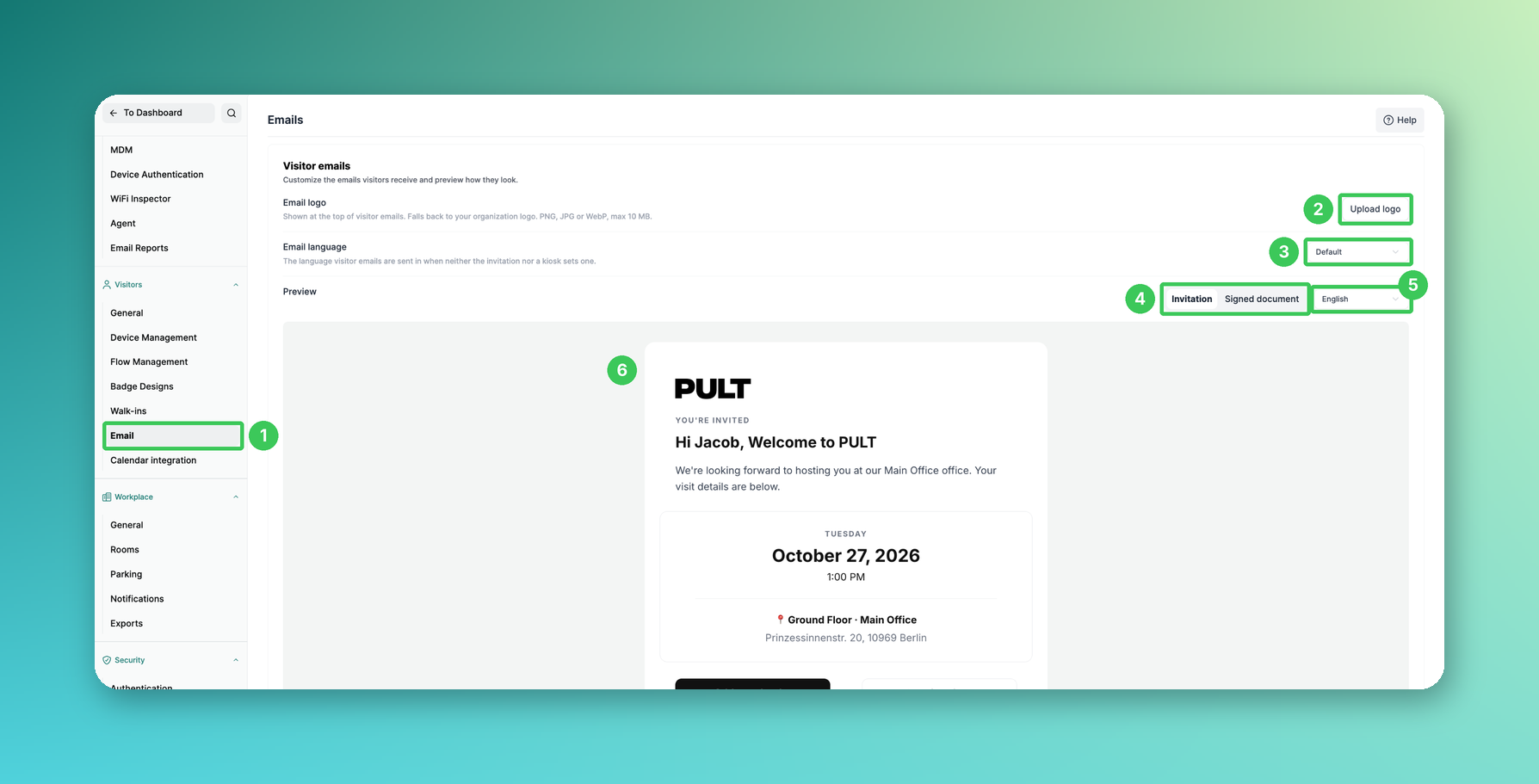
1. Email
In the PULT dashboard, go to Settings → Visitors → Email.
2. Email logo
Click Upload logo to show your own logo at the top of visitor emails (PNG, JPG or WebP, max. 10 MB). Without your own logo, your organization logo is used.
3. Email language
Choose the language visitor emails are sent in when neither the invitation nor a kiosk sets a language.
4. Invitation / Signed document
Switch between the two previews: Invitation shows the email a visitor receives when invited, Signed document shows the email after signing a document.
5. Preview language
Choose the language in which the preview is shown.
6. Preview
Check how the email will look before it is sent to your visitors.
Frequently asked questions
Where was this setting before?
In the old dashboard under Settings → Kiosk → E-mails. It is now under Settings → Visitors → Email.
Can visitors receive emails in different languages?
Yes. If the invitation or the kiosk sets a language, that language is used. Otherwise the email language set here applies.
When do visitors receive their signed documents?
Visitors receive one email at check-in with every document they signed during that visit (shown in the Signed document preview).
Can our reception be notified about new invitations?
Yes – add reception email addresses per office (see Guest Booking Settings).
Related articles
If you have any questions, feel free to contact our support team at support@pult.com.