Add documents to flows for Visitors
Last updated: October 21, 2026
Have visitors read and sign documents such as an NDA or your house rules directly at check-in. This article shows admins how to upload a document to a flow and add signature fields.
📌 Subscription required: The features below are only available with the Visitors add-on.
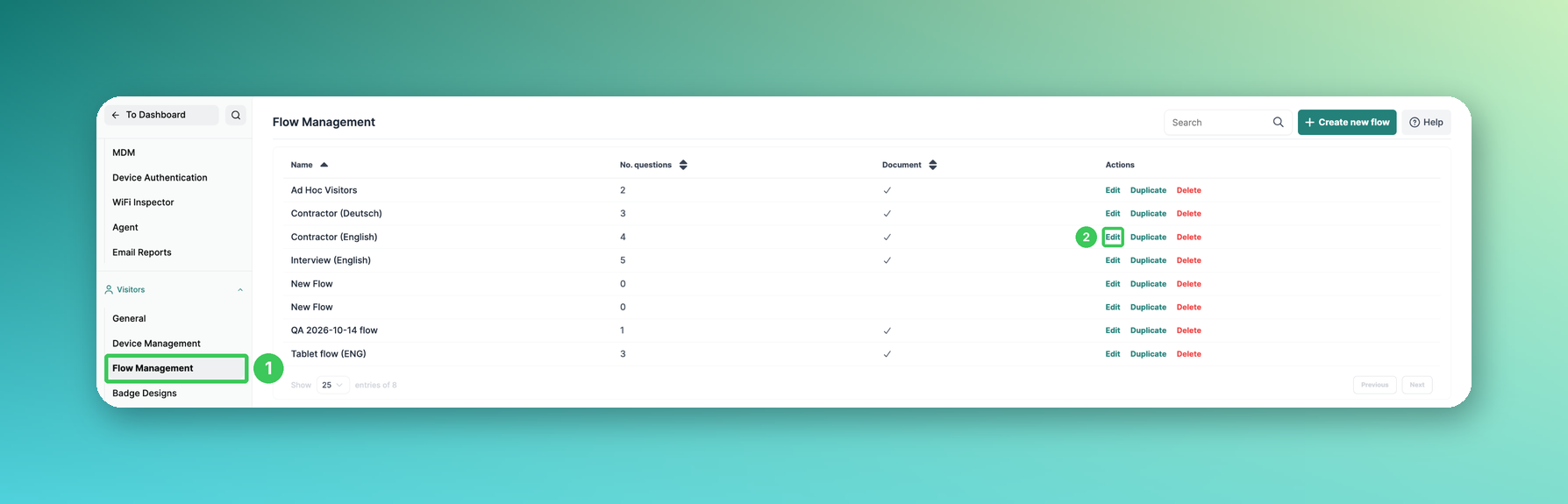
1. Flow Management
In the PULT dashboard, go to Settings → Visitors → Flow Management.
2. Edit
Click Edit next to the flow you want to change.
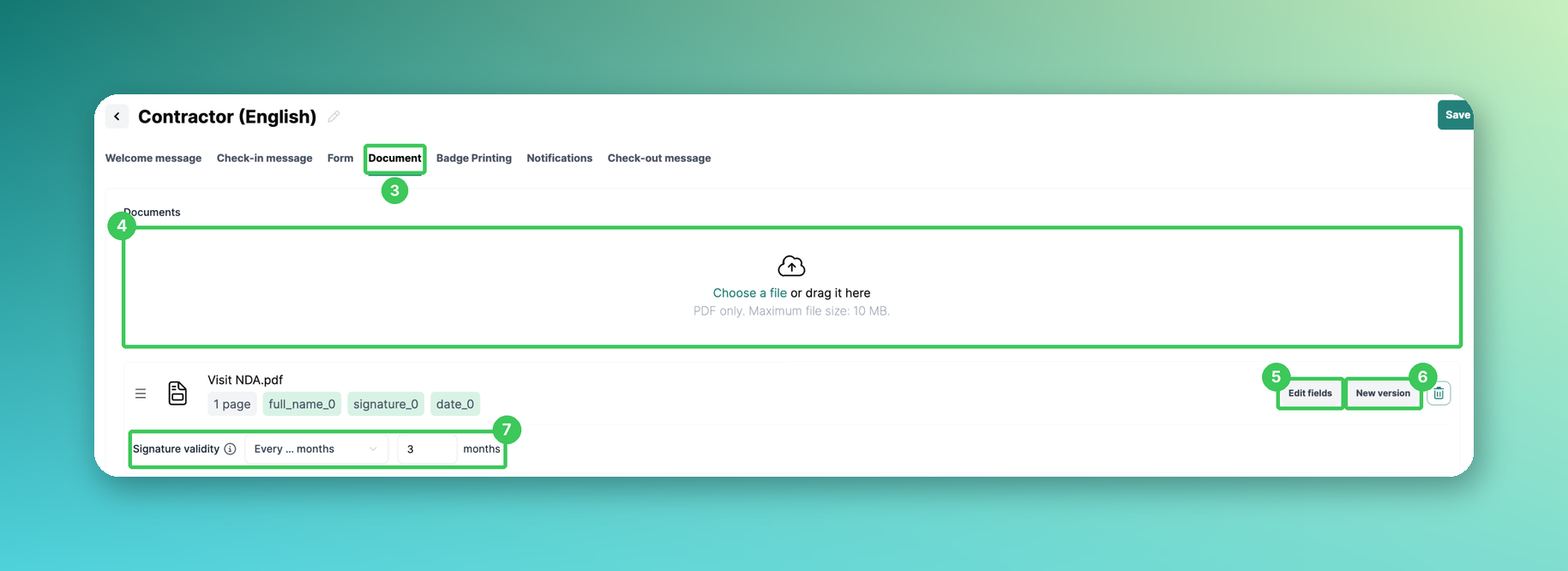
3. Document
Open the Document tab.
4. Upload
Click Choose a file or drag your file into the field (PDF only, max. 10 MB). The document then appears in the list below.
5. Edit fields
Opens the PDF editor where you place the fields visitors fill in (see below).
6. New version
Upload an updated version of the document (PDF). Check the signature fields carried over from the previous version and publish the new version. You decide whether all earlier signatures become invalid – this option is unticked by default, so existing signatures stay valid.
7. Signature validity
Choose how long a visitor's signature is valid (see Visitor Document & Form Settings for Repeat Visits).
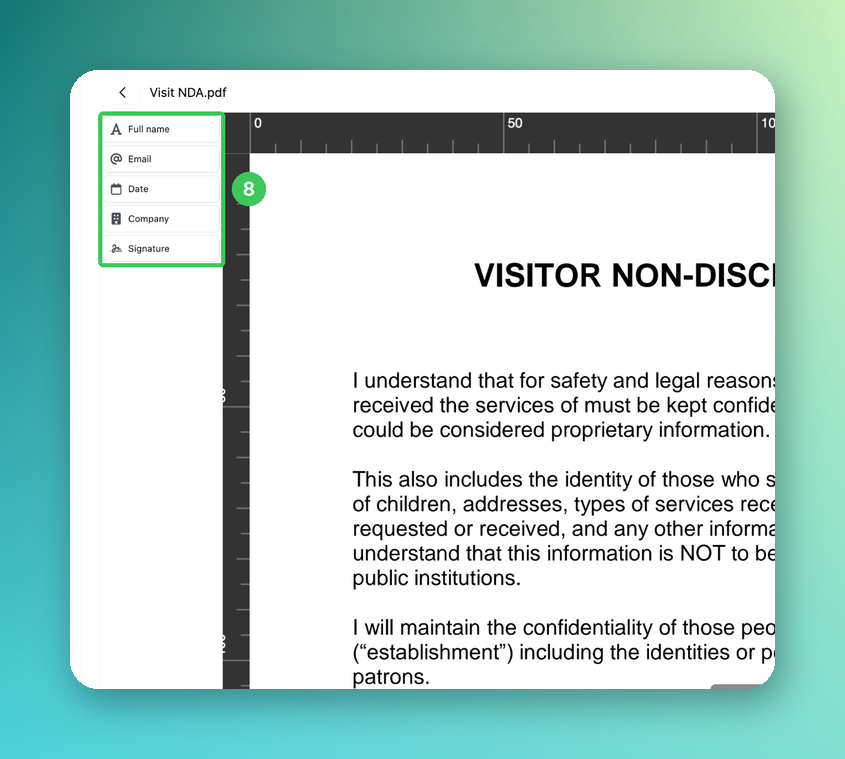
8. Field types
Click a field type and drag it to the right place in the document: Full name, Email, Date, Company or Signature.
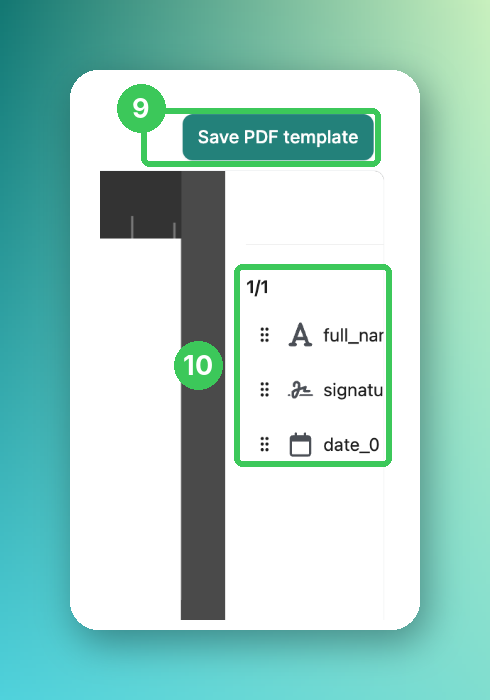
9. Save PDF template
Click Save PDF template when all fields are placed. Then save the flow with Save in the top right corner.
10. Field list
Shows all fields you have placed in the document.
Send signed documents by email
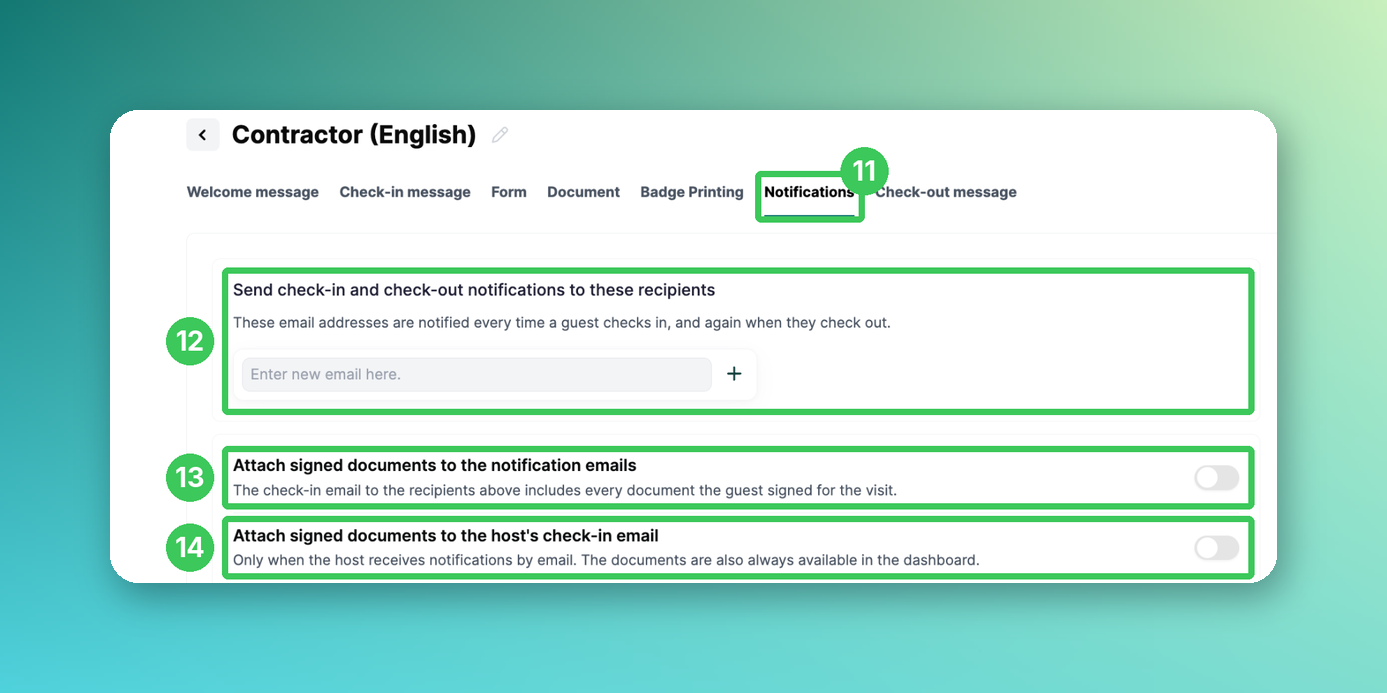
11. Notifications
Open the Notifications tab of the flow.
12. Recipients
These email addresses are notified every time a guest checks in, and again when they check out.
13. Attach signed documents to the notification emails
The check-in email to the recipients above includes every document the guest signed for the visit – including signatures from earlier visits that are still valid.
14. Attach signed documents to the host's check-in email
Only applies if the host receives notifications by email. The documents are also always available in the dashboard.
If the documents are larger than 7 MB in total, the email contains a link to the dashboard instead of the attachments. Both switches are off by default.
Frequently asked questions
Where do I find the signed documents?
A copy of the signed document is stored with the visit in the visitor overview in the dashboard.
Can signed documents be sent by email?
Yes – see sections 11–14 above.
Do repeat visitors have to sign again?
That depends on the signature validity (7), see Visitor Document & Form Settings for Repeat Visits.
Do visitors get a copy of the signed documents?
Yes. Visitors receive one email at check-in with all documents they signed during that visit. If a visitor signs but leaves without checking in, no copy is sent.
Related articles
If you have any questions, feel free to contact our support team at support@pult.com.