Quick Onboarding for Employees
Last updated: October 26, 2026
Welcome to PULT! This article shows you your first steps with the PULT web app as an employee: how to book your workplace, see where your colleagues work and set your personal preferences.
Interactive walkthrough & video
Prefer to click through yourself? Our interactive walkthrough guides you step by step through PULT. Here is a short introduction from our founder:
The booking screen
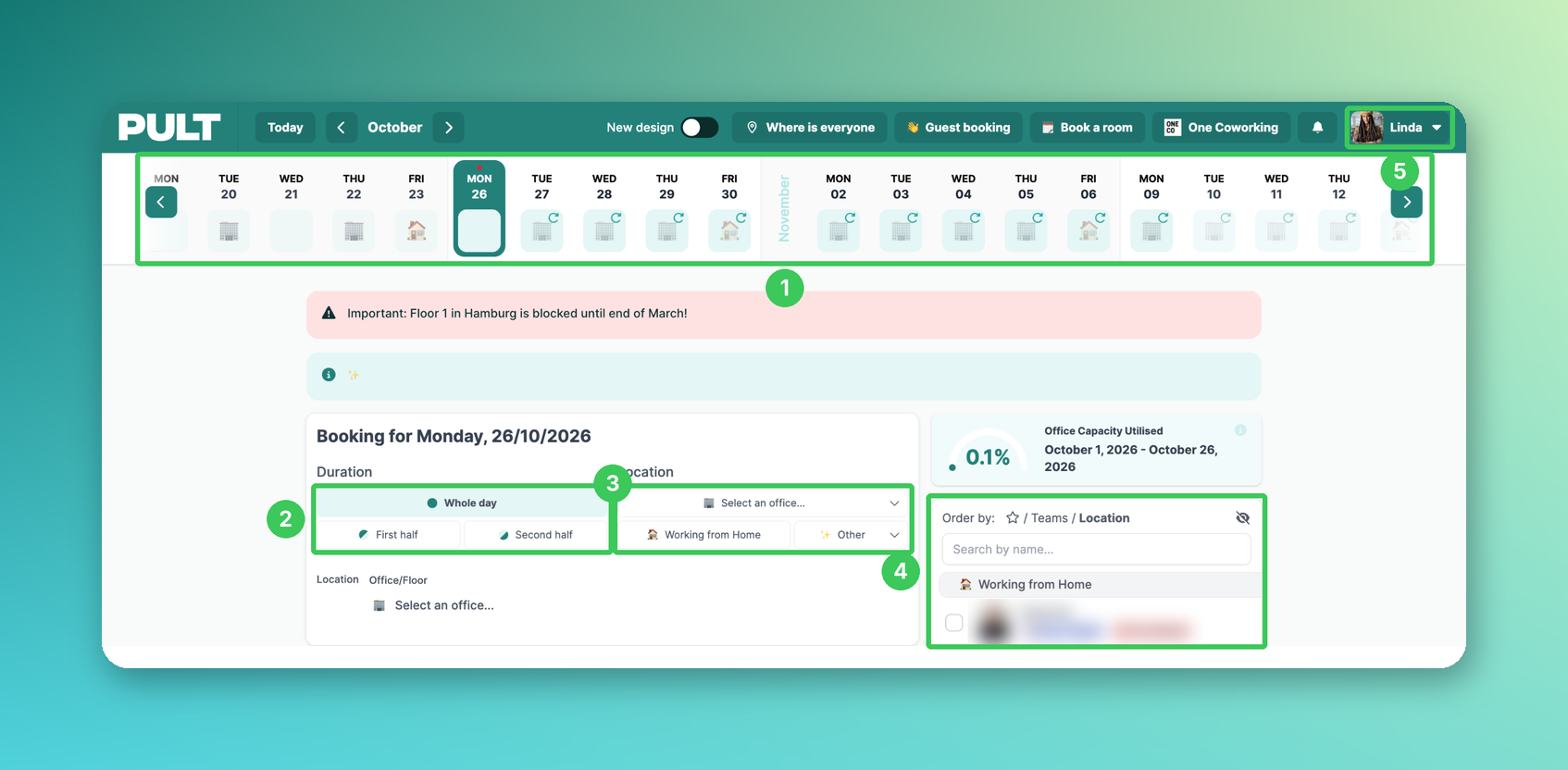
1. Choose a day
Select the day you want to book in the calendar bar. You can also book days in the future.
2. Choose the duration
Book the whole day or only the first or second half.
3. Choose your work location
Choose an office, Working from Home or another option under Other. If you choose an office, the floorplan opens and you can pick a free desk. Use the filter to find desks with the equipment you need:
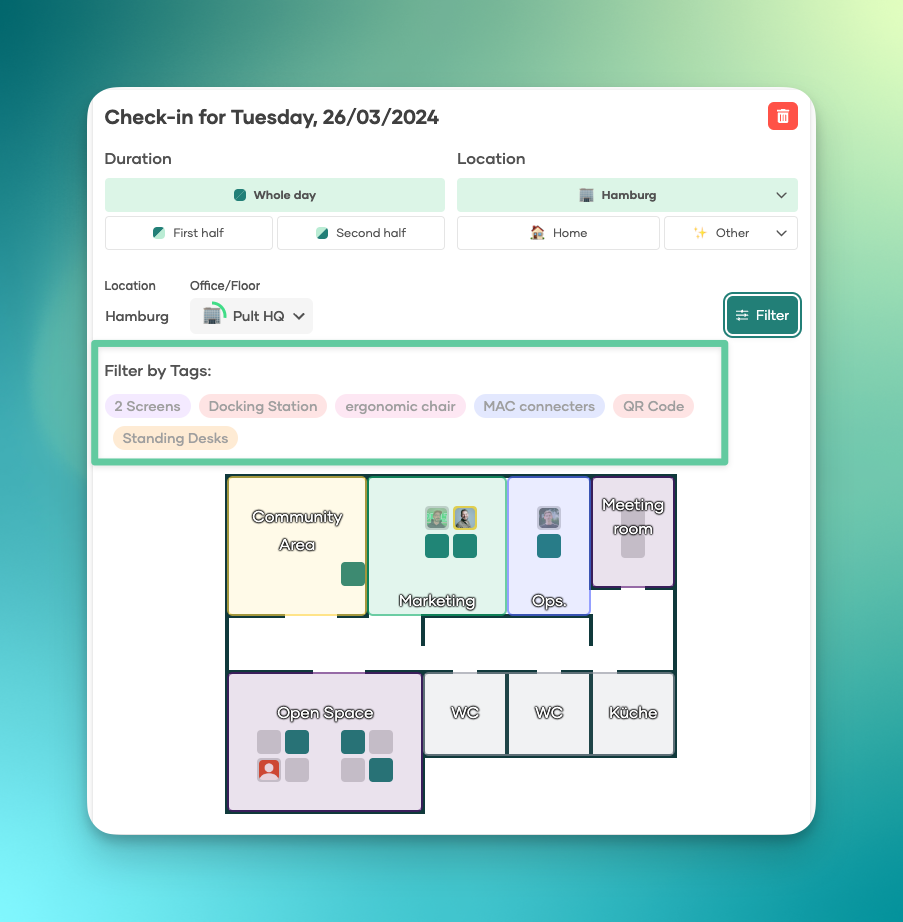
On the floorplan you also see which desks are already booked and by whom:
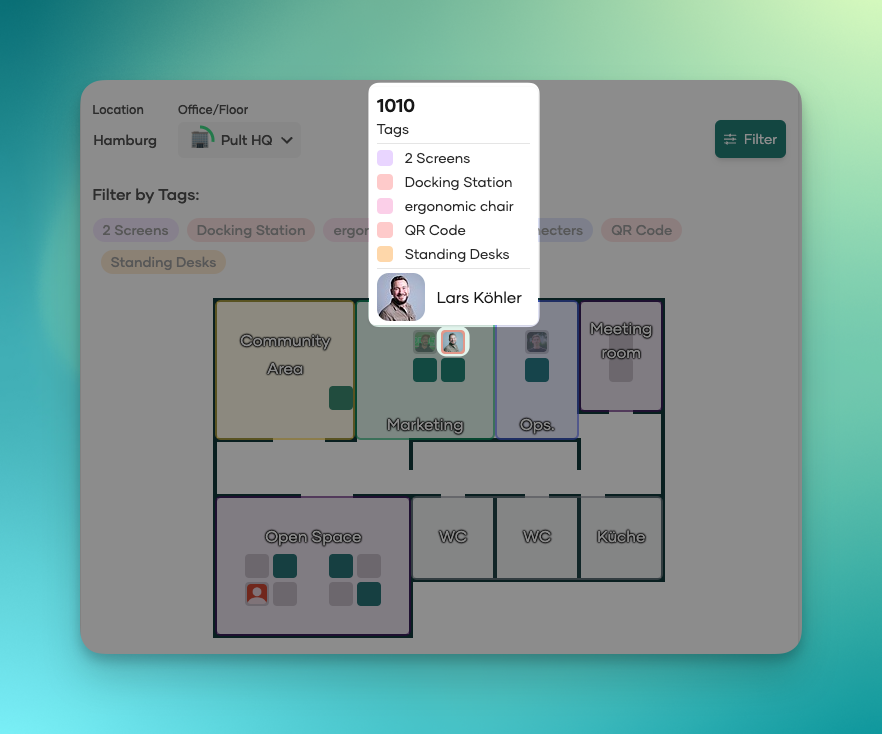
Good to know: clicking a desk you have already booked cancels the booking. If your company uses booking confirmation, you may need to check in within a certain time window – ask your admin if you are unsure.
4. See where your colleagues work
On the right you see who works where. You can sort by favourites, teams or location and search for names.
5. Personal settings
Click your profile picture in the top right corner and select Settings. There you set your language, privacy options, calendar sync and exports – and, if enabled by your admin, your Default Workplace Selection, e.g. “every Monday I work from home”.
Frequently asked questions
How do I cancel a booking?
Click the booked desk again or choose another location for that day.
Can I add PULT to my phone’s home screen?
Yes – see How do I add PULT to the Home Screen of my iPhone? and How do I add PULT to the home screen of my Android phone?.
Related articles
If you have any questions, feel free to contact our support team at support@pult.com.