Set “Absent” as a Default Day in Personal Settings
Last updated: November 21, 2025
Users can set “Absent” as a default option for specific weekdays in their personal settings. This is particularly useful for team members with a 3- or 4-day workweek or part-time schedules, as it allows them to:
Mark non-working days correctly, without affecting vacation or leave tracking.
Avoid receiving notifications for desk bookings on days they do not work.
Set a standard day, for example Friday, as a non-working day in their weekly schedule.
How to Set “Absent” as a Default Day
Go to the Settings page in the PULT Web App. You can access this by clicking on your profile picture in the top right corner of the screen.
Click on Weekdays and select “Absent” for the days you will not be working.
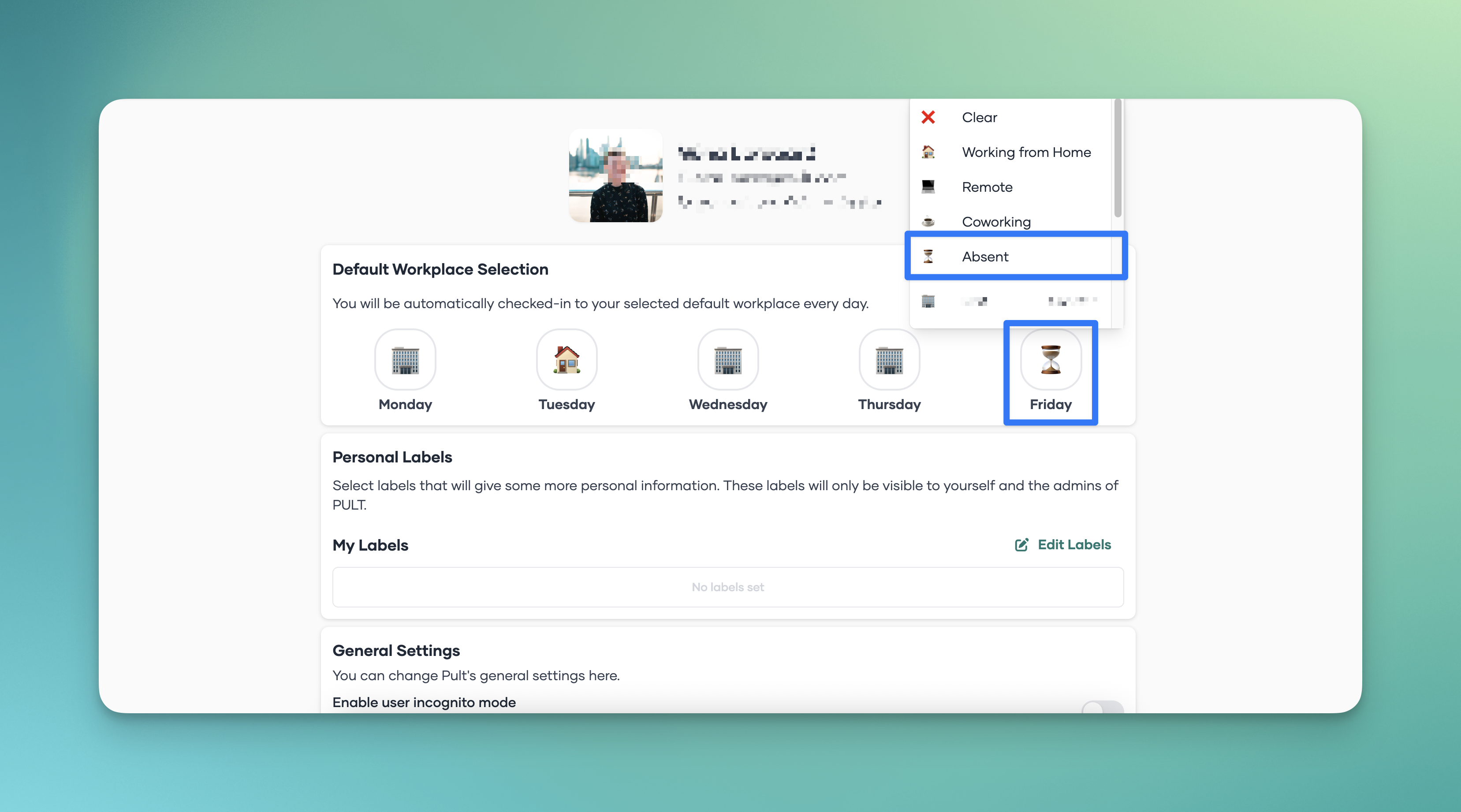
Using this setting helps maintain cleaner data, reduces HR adjustments, and provides a more accurate reflection of each person’s work schedule.