PULT API & MCP (Beta): Connect PULT to AI tools and your own systems
Last updated: November 2, 2026
With the PULT API (beta), you can read your organization’s PULT data in your own tools – for example in a BI dashboard, your HR system or your own reports. With the PULT MCP server, AI assistants like Claude can access the same data directly, so you can simply ask questions such as “How many people were in the office last week?”. This article shows admins which data is available, how to create an API key and how to connect.
📌 Before you start: You need admin rights in PULT. The API is switched on per organization by PULT – if you don’t see API keys under Settings → Security, contact us at support@pult.com and we’ll activate it for you.
What you can do with the API and MCP
The API is read-only: you can read data, but not create or change anything in PULT. These data are available:
Data | What you get | Requires |
|---|---|---|
Users | List and single users, filter by status (active, archived), group or email | any PULT product |
Groups | List and single groups | any PULT product |
Offices | List and single offices, filter by status | Workplace |
Bookings | Bookings for a period of up to 31 days, filter by type, office, group or up to 50 users | Workplace |
Presence locations | List and single locations | Presence |
Presence days | Per person, day and location: how the person was detected (WiFi or desktop agent) plus first and last seen time – for up to 31 days | Presence |
Presence location counts | Number of people per location and day – for up to 31 days | Presence |
The API follows the same privacy rules as your PULT dashboard:
Every API key only ever sees the data of its own organization.
Guests are not included.
Bookings and presence data only include people with an active seat.
Past bookings and presence data of archived users stay available – they appear in the user list with the status archived.
If your organization hides sensitive presence data, first and last seen times are left out.
Presence data follows your organization’s retention period.
1. Open the API keys page
In the PULT dashboard, go to Settings → Security → API keys. If the Connect box is collapsed, click Show.
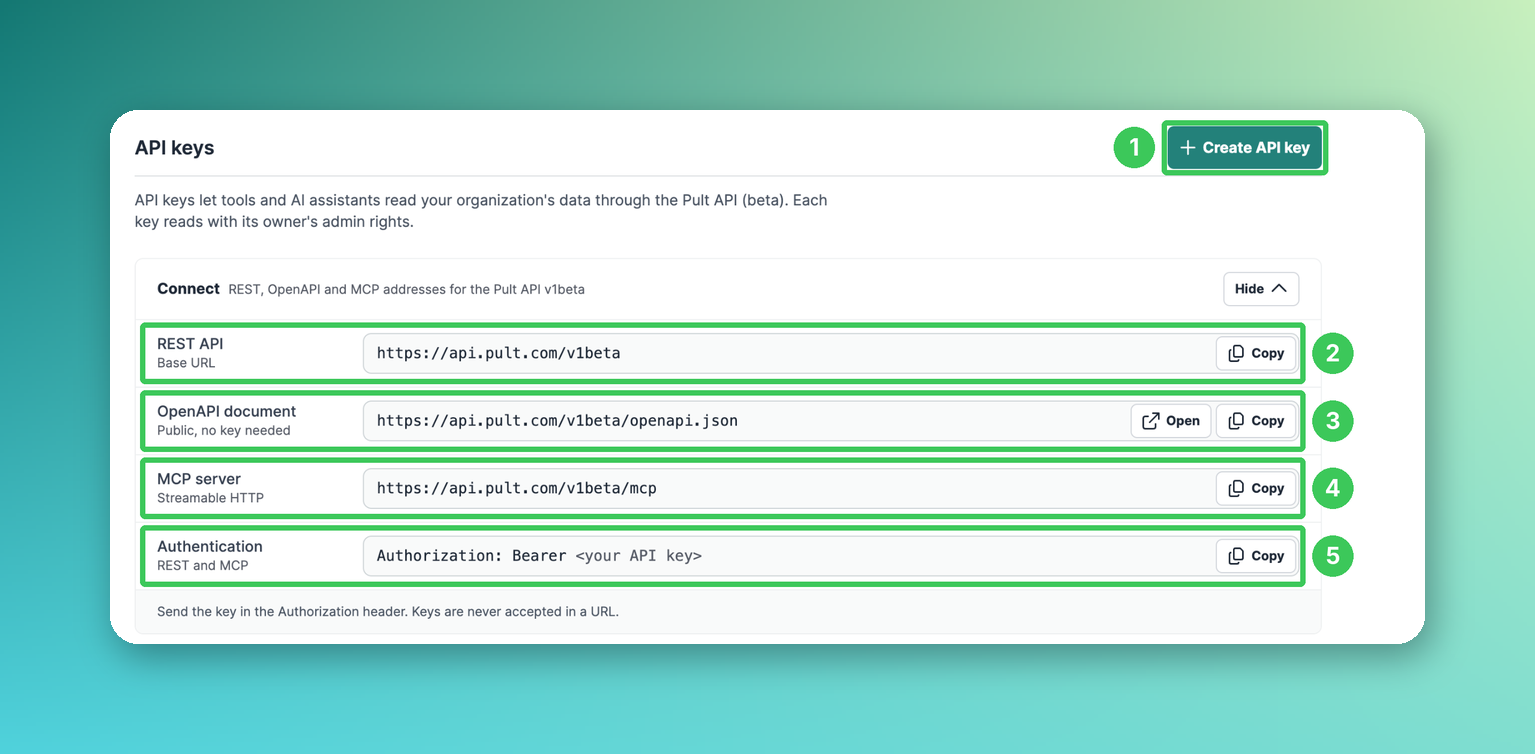
Create API key: Creates a new key (see step 2).
REST API: The base URL for your own integrations:
https://api.pult.com/v1betaOpenAPI document: The technical description of all endpoints. It is public, no key needed – your developers can use it to generate client code.
MCP server: The address for AI tools:
https://api.pult.com/v1beta/mcpAuthentication: How the key is sent – for REST and MCP in the header
Authorization: Bearer <your API key>. Keys are never accepted in a URL.
2. Create an API key
Click Create API key.
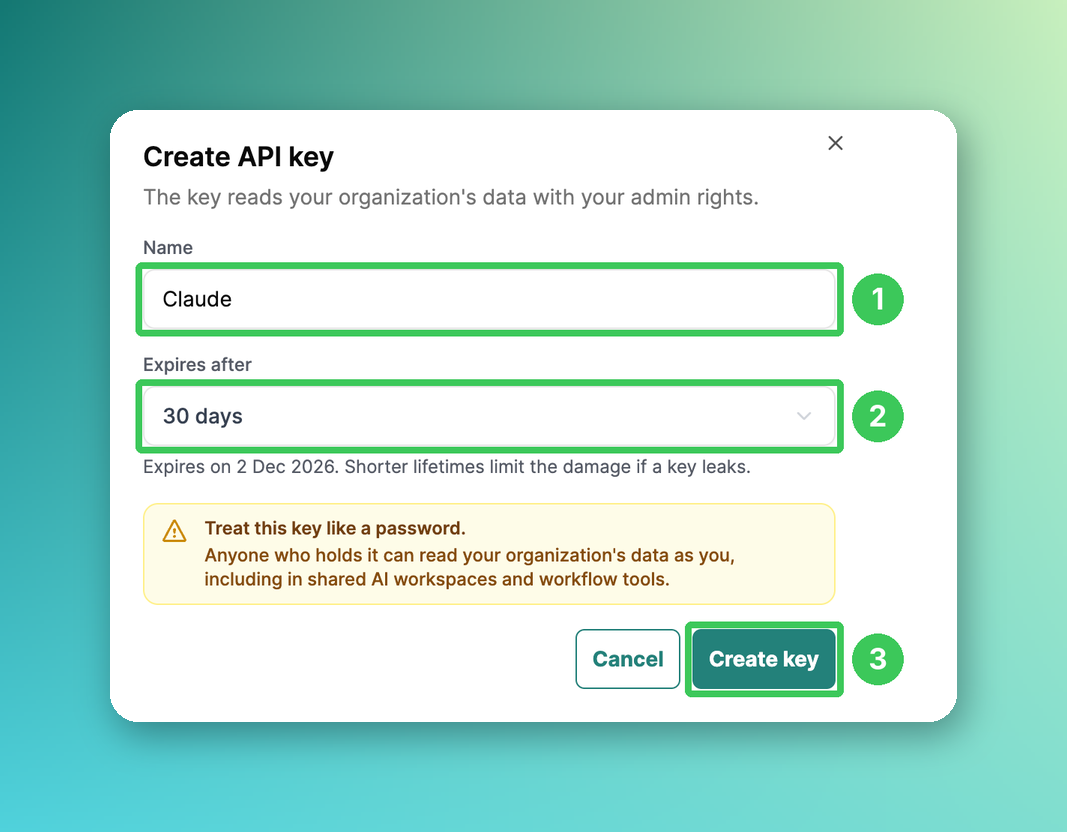
Name: Give the key a name that shows where you use it, e.g. “Claude” or “Power BI”.
Expires after: Choose 30 days, 90 days, 1 year or a custom date. Shorter lifetimes limit the damage if a key leaks.
Click Create key.
Your new key is shown:
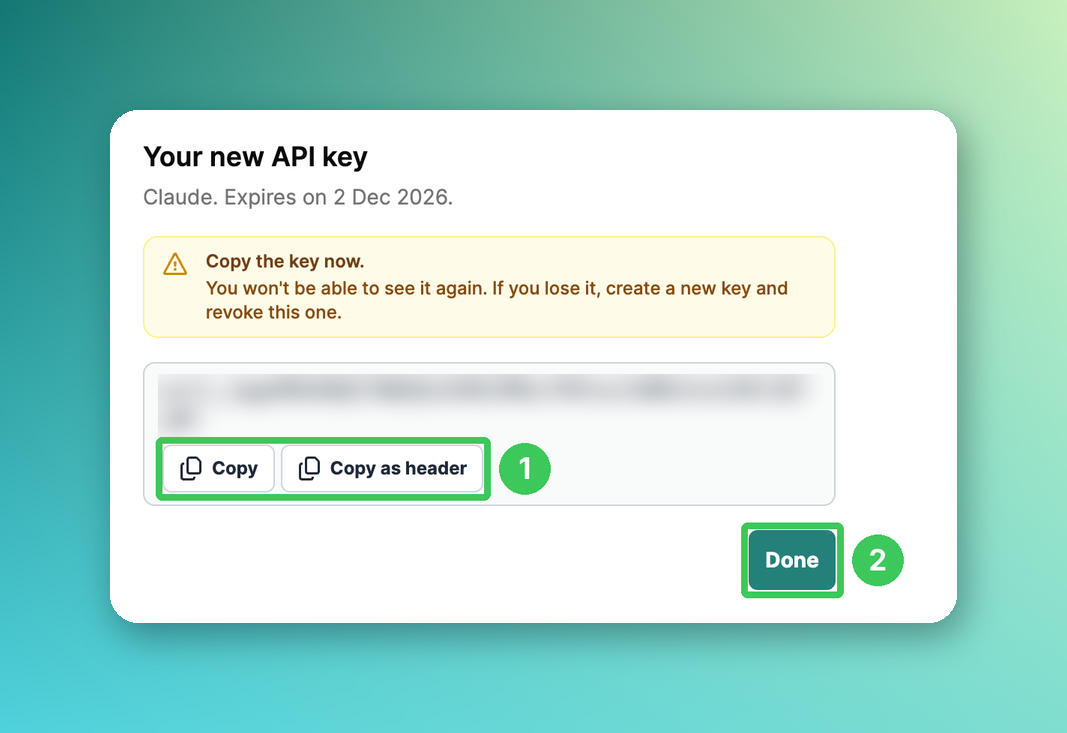
Copy copies the key only, Copy as header copies it ready to use as
Authorization: Bearer ….Click Done.
⚠ Copy the key right away. You won’t be able to see it again. Treat it like a password: anyone who has it can read your organization’s data with your admin rights – also in shared AI workspaces and workflow tools.
3. Connect an AI tool via MCP
In your AI tool, add PULT as a custom connector or MCP server:
Server URL:
https://api.pult.com/v1beta/mcp(Streamable HTTP)Authentication: Send your API key in the
Authorizationheader asBearer <your API key>. The easiest way is Copy as header from step 2.
After connecting, your AI tool sees all PULT data from the table above as read-only tools. Try questions like:
“Which offices do we have in PULT?”
“Who has booked a desk in our Hamburg office next Monday?”
“How many people were in the office per day last week?”
“Which members of the Marketing group were on site this week?”
📌 Which AI tools work? The PULT MCP server uses an API key, not OAuth. It works with AI tools that let you add an MCP server with an API key or a custom header, e.g. Claude, Langdock or Cursor. Tools that only support OAuth for MCP can’t connect yet. In ChatGPT, custom MCP connectors are currently only available in ChatGPT workspaces (Enterprise).
4. Use the REST API
For your own integrations, send requests to the base URL with your key in the Authorization header, for example:
curl -H "Authorization: Bearer YOUR_API_KEY" https://api.pult.com/v1beta/officesDocumentation: All endpoints and parameters are described in the OpenAPI document (number 3 in step 1).
Paging: Lists are returned page by page with a cursor, 1 to 500 entries per page (default 100).
Rate limit: Up to 600 requests per minute per key during the beta. If you exceed it, you get the status
429and aRetry-Afterheader.Errors: Every response has a
Request-Id. Please include it when you contact support about an error.
5. Manage and revoke API keys
All keys of your organization are listed below the Connect box.
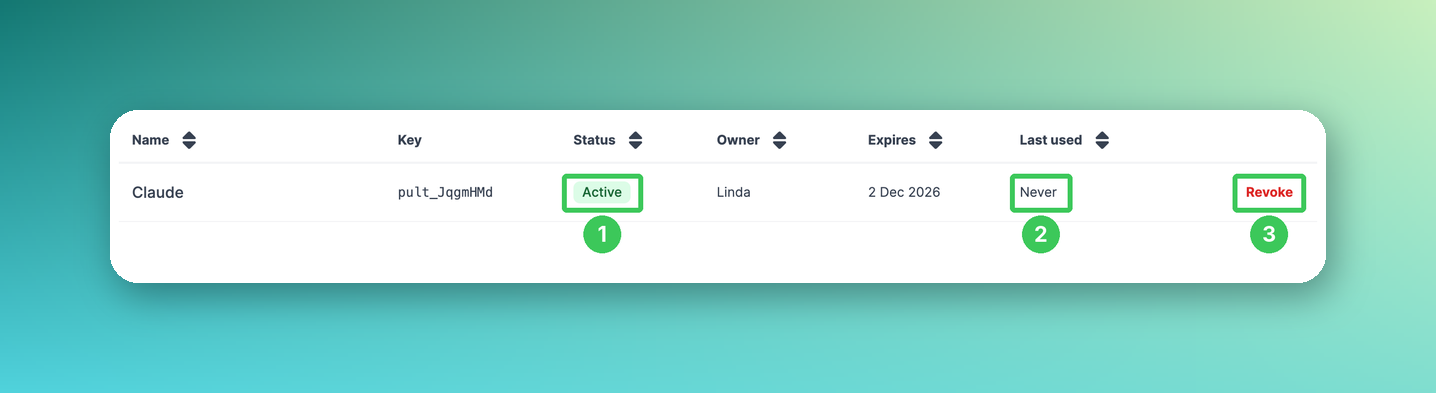
Status: Shows whether the key is active or revoked.
Last used: Shows when the key was last used – this helps you find keys nobody needs anymore.
Revoke: Deactivates the key.
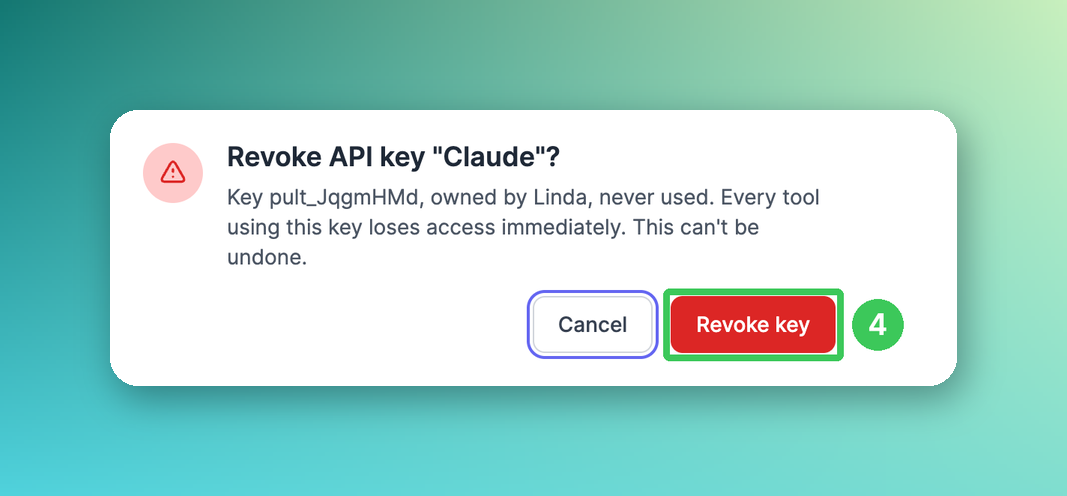
Confirm with Revoke key. Every tool using this key loses access immediately. This can’t be undone.
A key also stops working automatically when it expires, when the API is switched off for your organization, or when its owner is archived or no longer an admin.
Frequently asked questions
Can I create or change bookings via the API?
Not yet. The beta is read-only – you can’t create or change bookings, users or other data.
Who can create API keys?
Only admins. A key belongs to the admin who created it and reads data with their admin rights. Limiting a key to certain data isn’t possible yet.
I lost my API key. Can I see it again?
No, a key is only shown once. Create a new key and revoke the old one.
Our integration stopped working. What happened?
Check the status and expiry date of the key on the API keys page. Keys also stop working when the owner is archived or no longer an admin – in that case, another admin creates a new key.
Can I connect ChatGPT?
Only with custom MCP connectors, which are currently available in ChatGPT workspaces (Enterprise). Other ChatGPT plans need OAuth, which the PULT MCP server doesn’t support yet.
Will the API change?
Possibly. The beta version v1beta may still change before the stable version is released.
Related articles
If you have any questions, feel free to contact our support team at support@pult.com.